
In your Calendar view, you can add an external calendar to view any relevant upcoming events easily.
You can add any external calendar by pasting a public iCal URL. Here are some of the apps that offer such a link:
- Google Calendar
- Outlook Calendar
- Apple Calendar (iCloud)
- Zoho Calendar
- Yahoo Calendar
- Calendly
- Notion Calendar
- Cal.com
- Fastmail
- Teamup
- Luma
- Eventbrite
- Basecamp
In this guide, we'll cover in detail how to create a link for the main 3 calendars: Google, Outlook, and Apple.
Google Calendar
First thing you need to do is find the calendar you want to link. You'll see the list of calendars you have access to on the left-hand side. Choose the calendar you want to import, click the 3 little dots, and select "Settings" or "Settings and sharing":
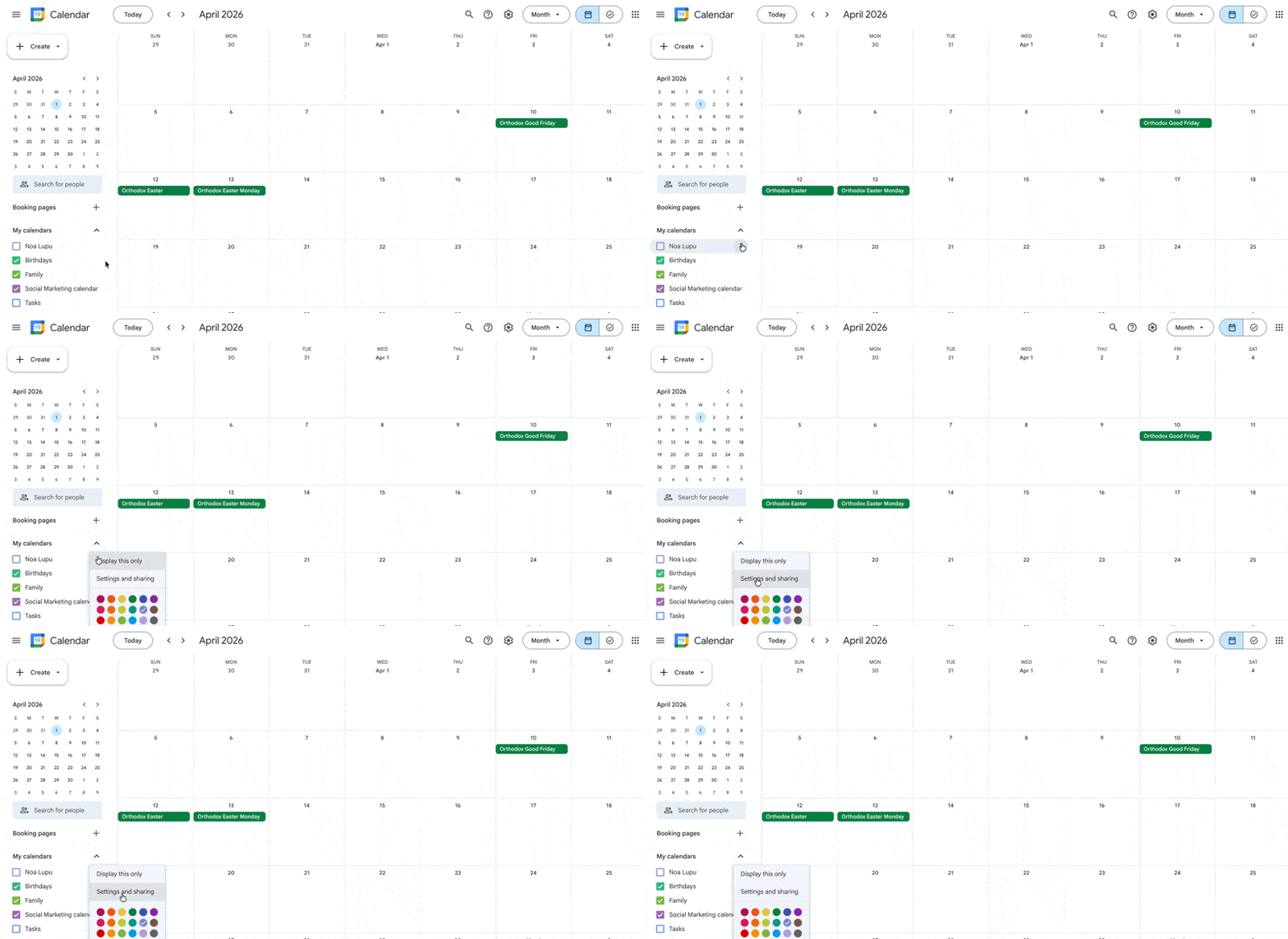
From the Settings menu, scroll to the bottom, and you'll find several links.
- If your calendar is public (ex. Holidays in the US), you'll see a Public address in iCal format. Copy that link and paste it into Planable.
- If it's a personal/private calendar, you'll see a Secret address in iCal format underneath the Public address in iCal format. You need to copy the secret address and paste it into Planable.
Outlook Calendar
Go to your calendar and find the settings menu in the top right corner:
From the Settings menu, select "Shared calendars":
To create your public link, go to "Publish a calendar", select the one you want to share, choose the visibility of the events, and hit "Publish".
You'll see 2 links. You need to copy the ICS one and paste it into Planable:
Apple Calendar
In your Apple calendar, find the list of calendars on the left, and click on the "person" icon.
From the Calendar Sharing settings, enable the option to have it as a "Public Calendar" and then copy the generated link: