
Getting client approval for your content doesn't have to be complicated. This guide walks you through the complete process of setting up and managing client approvals in Planable, from initial setup to final approval.
Before you start: mandatory setup
If you're unfamiliar with workspaces or how Planable works, we highly recommend reading Getting started with Planable first to understand the basics.
1. Set up your Approval Workflow
First, make sure your workspace has the right approval workflow enabled.
Navigate to your Workspace Settings (hover over your workspace name and click the 3 dots) and select Approval Settings.
For professional client approvals, consider implementing one of the two options:
- Required Approval is the main workflow type for client approvals - it ensures no posts can be published without approval from at least one approver (like the client). This approval type is available on the Pro plan.
- Multi-level Approval is available on Enterprise plan and is for more complex scenarios where you might need internal approval first, then client approval. This could also include multiple internal approvers (like content creator → design team → executive lead) before final client approval.
2. Invite clients with proper permissions
When inviting clients to your workspace, it's important to:
- Set the right membership type: Always invite clients as "Client" members. This allows your team to create content that's hidden from clients until you're ready for their review.
- Choose appropriate permissions: For most clients, select "Approver" permissions so they can approve content and leave feedback.
However, depending on your client's involvement level, you can also customize their access to give them additional permissions like editing posts, publishing content, or viewing analytics.
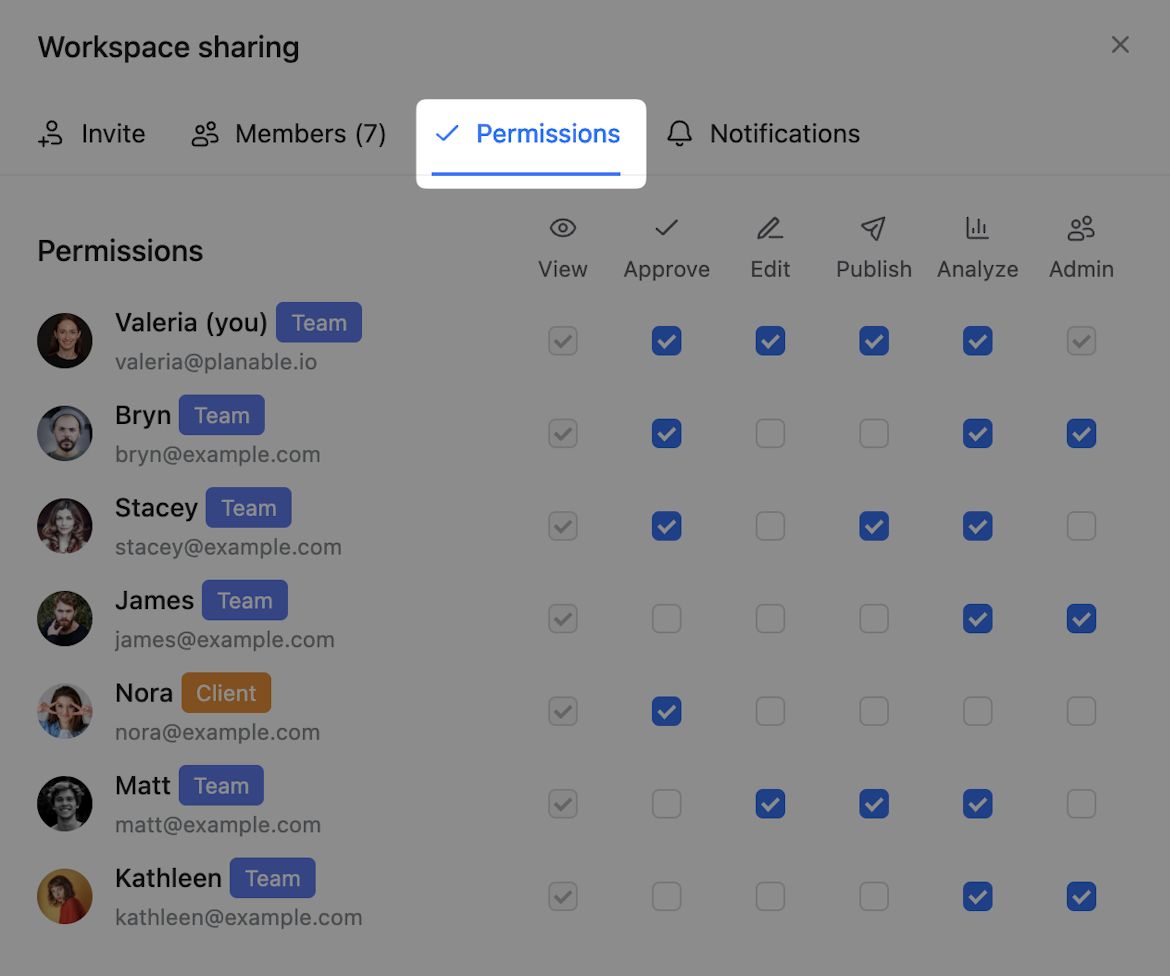
When you're ready to invite a client, follow these steps:
- Click the "Workspace users" button in the right top corner.
- Add their email and name
- Select "Approver" for permissions
- Choose "Client" for membership type
- Automatically send the invitation or generate an invite link.
3. Keep new posts hidden from clients (Recommended)
It is important to configure your workspace to create posts as hidden by default. Go to your Workspace Settings and enable "Create new posts as internal". This ensures new posts are automatically hidden from client view (indicated by the striped bar at the top of posts).
This setting lets your team:
- Draft and refine content internally
- Add internal notes and feedback
- Work on the content before client review
Clients won't see these posts in Planable, even if they match other filters.
The approval process
Now that your workspace is properly configured, here's how to get your content approved by clients.
Step 1: Make content visible to clients (Using List View - recommended)
This process requires setting up two separate custom views - one for your team to manage hidden content, and one for clients to access posts for approval.
Here's why:
- Your team needs one view to see all the hidden posts your team is working on or has completed, which you'll make visible to clients all at once in an easy way.
- Your clients need a different view that only shows posts ready for their approval - this keeps their workspace clean and focused on what actually needs their attention.
1.1 First, create a team view for managing hidden content
Once your content is ready for client review, you need to make it visible to them.
List View is strongly recommended for this process as it allows bulk actions, though you can also use Calendar View, too, for a comprehensive view across all your social media pages.
Here's how:
- Switch to List View
- Select in the Filter & Sort the "Team only posts" (hidden content)
- Filter by your desired time period (this month, next month, etc.)
- Save this view for future use as "Hidden Content" - you can also set this view as visible for you only or for your team (workspace level).* Make sure you select the relevant pages.
This is configured only once - you can access this view ("Hidden Content") anytime in the future, and the content that is hidden from clients for the selected period will be dynamically updated.
4. Select all posts ready for client review (you can select multiple at once). Click on the 3 dots menu and click on "Make visible to clients"
What happens after you make posts visible?
Once you click "Make visible to clients" those posts will disappear from your "Hidden Content" view. This is normal. They're no longer hidden - they're now visible to clients.
As soon as you create new posts that are hidden from clients, this view will automatically populate again with those new hidden posts. So don't worry when you see posts disappearing after making them visible - that's exactly how it should work.
This is why you need the client approval view next - that's where you'll see all the posts that are now visible, waiting for client approval and that could be shared with the client.
1.2 Next, create a client approval view
Once you've made content visible to the client, you need to create a dedicated view that shows clients exactly what needs their approval.
Here's how:
- Create another custom view with these filters:
- Approval Status: "Not approved"
- Time period: E.g next 14 days (or your preferred timeframe)
- Save this view as "Content to Approve" (as an e.g)
- Set this view as accessible to everyone in the "Workspace" so clients can access it
Now you have two views: one for your team to manage content visibility, and one for clients to approve content.
Step 2: Give your client access to review content
Now that you've created the client approval view, you need to ensure your client will know when content is ready to be reviewed. For that you'd need to share the Approval View URL with them.
Here's how:
- Copy the URL from the client approval view you created in Step 1.2
- Send it to your client via your preferred method. When sharing the URL for the first time, explain that this is where they can access all posts that need their approval
- You can also ask them to save this view as a favorite for easy access in the future
The client approval view you created serves as the central hub where clients can see all posts awaiting their approval. To ensure your clients are actively reminded when new content is ready, they need to enable Planable's notification system.
Step 3: Client Notifications setup
For clients to receive notifications, including approval related ones, they need to enable notifications in their profile settings. Clients can configure:
- Email notifications (when idle/offline, always, immediately, or hourly)
- In-app notifications (desktop and mobile alerts)
To configure: Profile icon → Profile Settings → Notifications → Enable desired types.
For detailed setup instructions, see: Notifications settings.
Best practices for client communication
The "Inbox Zero" approach
Explain to clients that the approval view works like email - as they approve content, posts disappear from the view. The goal is to reach "inbox zero" where no posts remain in their approval queue.
Dynamic views advantage
Custom views automatically update as new content is added or approved. Once you create them, you can reuse the same links month after month without recreating filters.
Alternative options - Public links (No Login Required)
For clients who prefer not to create a Planable account, you can create public links where they can:
- View content without logging in
- Leave feedback on posts
Public links don't allow approval actions - clients can only view and comment.
To create a public link, when setting up your custom view, choose "Public" instead of "Workspace" access.
Moreover, make sure to provide the right permissions.
Managing multiple communication preferences
If you work with several clients, you can use different methods for different clients based on their preferences:
- Tech-savvy clients might prefer the URL method for self-service approval
- Busy clients might prefer direct notifications in combination with the URL method
- Clients without Planable accounts can use public links for feedback only.
Quick checklist
Follow this checklist to confirm your client approval workflow is properly configured: