
To get client approval in Planable, set a Required or Multi-level approval workflow, invite the client as an Approver with the Client membership type, keep drafts internal, and send approval requests so every post waiting for sign-off appears in the client's My approvals section.
→ Before you start: set up the workspace
→ How the client approval process works
→ Best practices for client communication
→ Client approval checklist
→ Frequently asked questions
Good to know: New to Planable? Read Getting started with Planable first to learn how workspaces work.
Before you start: set up the workspace
1. Choose an approval workflow for client sign-off
Make sure the workspace uses an approval workflow that requires sign-off.
Open your Workspace settings (hover over the workspace name and click the 3 dots) and select the approval settings.
For client approvals, use one of these two workflows:
- Required approval (Pro plan): no post can be scheduled or published until at least one approver, such as the client, approves it. This is the most common setup for client approvals.
- Multi-level approval (Enterprise plan): posts go through several approval levels in order, for example content creator, then design team, then executive lead, and finally the client.
Compare all workflows in Approvals and approval workflows.
2. Invite clients with the right permissions
*Client membership is available on the Pro and Enterprise plans, not on Basic.
When you invite a client to the workspace:
- Set the membership type to Client. Client members only see what you choose to show them, so your team can draft content that stays hidden until it is ready for review.
- Give them the Approver permission. Approvers can approve posts and leave feedback.
Depending on how involved the client is, you can also give them more permissions, such as editing posts, publishing content or viewing analytics.
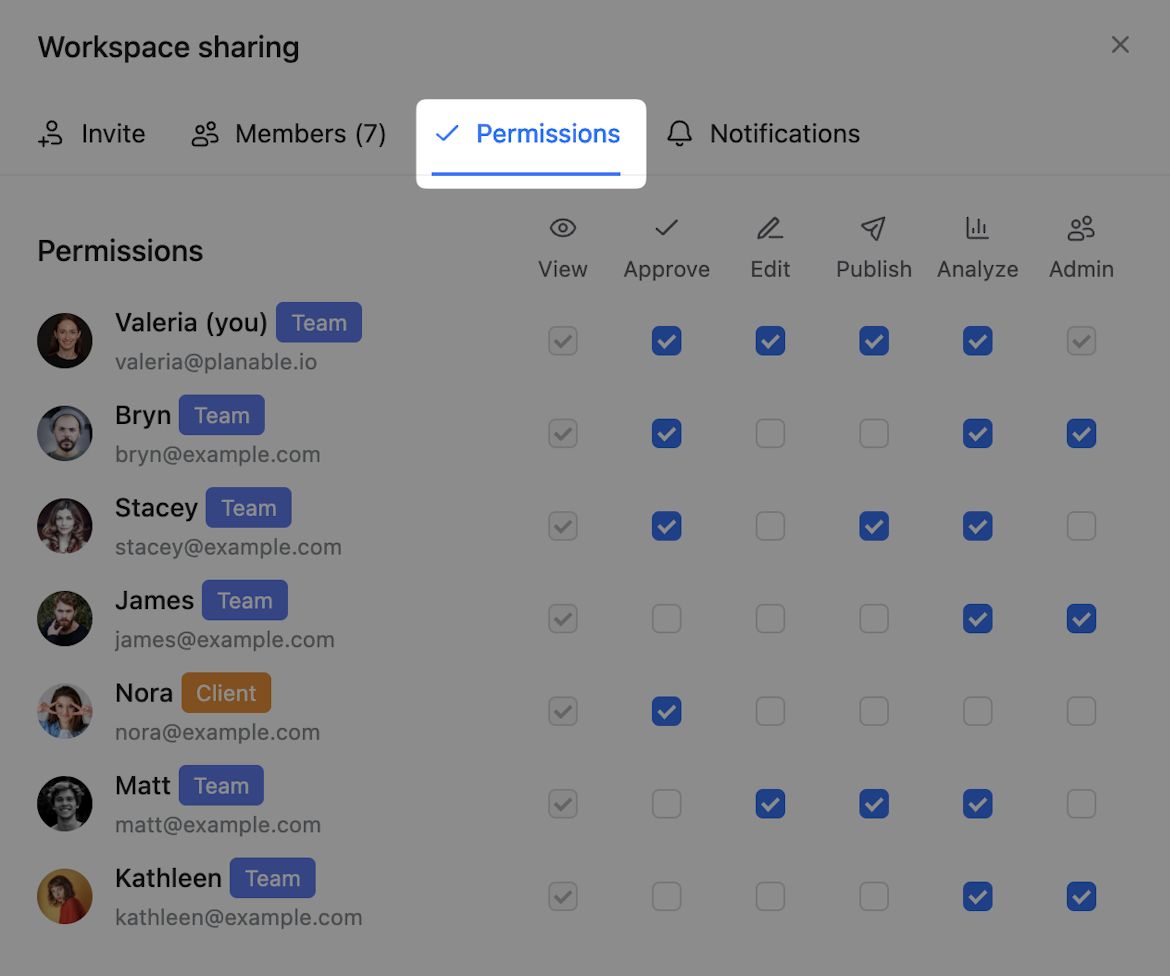
To invite a client:
- Click the Workspace users button in the top right corner.
- Add their email and name.
- Select Approver as the permission.
- Choose Client as the membership type.
- Send the invitation by email, or generate an invite link.
3. Keep new posts hidden from clients (recommended)
Set the workspace to create new posts as hidden by default. In Workspace settings, turn on Create new posts as internal. New posts are then hidden from clients, which a striped bar at the top of the post shows.
This setting lets your team:
- Draft and refine content internally
- Add internal notes and feedback
- Finish the content before the client reviews it
Clients do not see internal posts in Planable, even if the posts match their filters.
How the client approval process works
Once the workspace is set up, follow these steps to get content approved by your client.
Step 1: Make content visible to clients (List view recommended)
Your team uses a custom view to manage hidden content and make it visible to the client. Your client then reviews everything waiting for them in their My approvals section.
1.1 Create a team view for hidden content
List view is recommended because it supports bulk actions. You can also use Calendar view for an overview across all your social media pages.
- Switch to List view.
- In Filter & Sort, select Team only posts (hidden content).
- Filter by the time period you want, such as this month or next month.
- Save the view as "Hidden content" and select the relevant pages. You can make the view visible only to you, or to your team (workspace level).
Good to know: You only set this view up once. It updates automatically and always shows the posts that are currently hidden from clients for the selected period.
- Select all the posts that are ready for client review. Click the 3 dots menu and choose Make visible to clients.
What happens after you make posts visible?
After you click Make visible to clients, those posts disappear from your "Hidden content" view. This is expected: they are no longer hidden, so clients can now see them.
When your team creates new hidden posts, the view fills up again automatically.
Next, send those posts to your client for approval, so they show up in the client's My approvals section.
Step 2: Send approval requests so posts land in the client's My approvals
The My approvals section is the best place for clients to check what they need to approve. It collects every post waiting for their sign-off across the workspace, in three columns: Awaiting approval, Feedback left and Approved.
Good to know: Posts only appear in a client's My approvals section after an approval request has been sent to them. Without a request, the post stays out of their queue, even if they have the Approver permission.
To send posts to your client:
- One post at a time: open the post, hover over the approval button and click Request approval next to your client's name.
- In bulk (Pro and Enterprise plans): in the Calendar, click Request approvals, select the posts and choose your client as the approver.
See Requesting approval for the full steps.
Your client then opens My approvals, reviews each post, and approves it or leaves feedback. They can also approve all posts at once. See Reviewing content in My approvals section to share with your client.
💡 Pro tip: Turn on automated reminders for approvals so clients get a nudge when posts are still waiting in My approvals.
Step 3 (optional): Share a client approval view
If your client also likes to review content in Calendar or List view, you can create a custom view that lists the posts waiting for approval and share its link. My approvals stays the main place to approve.
Create a client approval view
Create a dedicated view that shows your client the posts that still need approval.
- Create another custom view with these filters:
- Approval status: Not approved
- Time period: for example, the next 14 days
- Save the view, for example as "Content to approve".
- Make the view accessible to everyone in the Workspace, so your client can open it.
Share the view with your client
- Copy the URL of the client approval view.
- Send it to your client however you usually communicate.
- Ask them to save the view as a favorite, so they can find it quickly later.
Step 4: Set up client notifications
To get notified when new content is waiting in My approvals, your client needs to turn on notifications.
To receive notifications, including approval requests, clients turn them on in their profile settings. They can choose:
- Email notifications: when idle or offline, always, immediately, or hourly
- In-app notifications: desktop and mobile alerts
To set them up, go to Profile icon > Profile settings > Notifications and turn on the types you want. See Notifications settings for details.
Best practices for client communication
Use an "inbox zero" approach
Explain to clients that My approvals works like an email inbox: as they approve posts, the posts move out of the Awaiting approval column. The goal is to reach "inbox zero", with nothing left waiting for their approval.
Reuse dynamic views every month
Custom views update automatically as content is added or approved. Once you create them, you can reuse the same links month after month without rebuilding the filters.
Use public links for clients without a Planable account
If a client prefers not to create a Planable account, share a public link. With a public link, they can:
- View content without logging in
- Leave feedback on posts
Good to know: Public links do not allow approval actions. Clients can only view and comment.
To create a public link, choose Public instead of Workspace access when you set up the custom view, and make sure you give the right permissions.
Match the method to each client
If you work with several clients, use the method that fits each one:
- Most clients do best with approval requests and My approvals, so everything to review is in one place.
- Busy clients may prefer email notifications, so they know when to open My approvals.
- Clients who like a calendar overview can also use a shared custom view.
- Clients without a Planable account can use public links, for feedback only.
Client approval checklist
Use this checklist to confirm your client approval workflow is set up correctly:
| Setup step | Done |
|---|---|
| Approval workflow set to Required or Multi-level | ☐ |
| Client invited with the Client membership type and the right permissions | ☐ |
| Create new posts as internal turned on in Workspace settings | ☐ |
| "Hidden content" custom view created (ideally in List view) | ☐ |
| Content made visible to clients from the "Hidden content" view | ☐ |
| Approval requests sent to the client, so posts appear in their My approvals section | ☐ |
| Client told to check My approvals for everything they need to review | ☐ |
| "Content to approve" custom view created and shared (optional) | ☐ |
| Client notifications turned on | ☐ |
Frequently asked questions
Which plan do I need for client approvals?
Required approval and client membership are available on the Pro and Enterprise plans. Multi-level approval, for several approval steps in a row, is available on the Enterprise plan.
Can clients approve posts without a Planable account?
No. Clients need a Planable account with the Approver permission to approve posts. Public links let clients without an account view content and leave comments, but not approve.
How do I hide drafts from my client?
Turn on Create new posts as internal in Workspace settings. New posts stay hidden from Client members until you select them and choose Make visible to clients.
How does my client know what to approve?
Send them approval requests. Every post you request their approval on appears in their My approvals section, which is the best place for clients to see everything they need to review. Ask them to turn on notifications so they know when new posts arrive.
Where should my client go to approve posts?
To the My approvals section. It lists every post waiting for their approval, and they can approve posts one by one, approve all at once, or leave feedback.
Why did posts disappear from my Hidden content view?
After you make posts visible to clients, they are no longer hidden, so they leave the Hidden content view. Send them for approval so they appear in your client's My approvals section.